

For years I used different tools to control SQL source code in different projects. I didn’t need to think too much about the complexity of it or the cost, it was there, you are taught to use it and that’s all. It wasn’t until I joined a greenfield project that I realized how dificult is to have an appropiate tool to manage database projects.
You start with a new technology and, when the project starts growing, you really need your code safe in a repository and proper versioning.
Then the investigation began. Tools in the market suitable for our small team allowing multiple developers working on the same object or having dependencies on the same project. There are not free tools that we could use like Git (well, you can use it but it requires an script automation tool and some manual work) and the cost is quite high.
RedGate, APEXSQL and dbForge are well known and fantastic tools for database projects but they are expensive! so we decided to use SQL Server Database Projects to store our code and control the versioning and deployment. Once you pay the Visual Studio license there is no additional cost and you can use Git with AzureDevOps or just Git as version control tool.
You will need the following tools to complete this solution:
- Visual Studio. Obviously VS is not free as you need a license (or a free development license if you don’t work for an organization).
- Azure DevOps Account. You can obtain a free account in the following link:
https://azure.microsoft.com/en-gb/services/devops/
I am working right now in a Space Weather project were we are calling an NASA API to collect different space weather measurements like Coronal Mass Ejection, Geomagnetic Storm or Solar Flares.
I’ve created a new SQL Server Database project with VS to store my first objects.
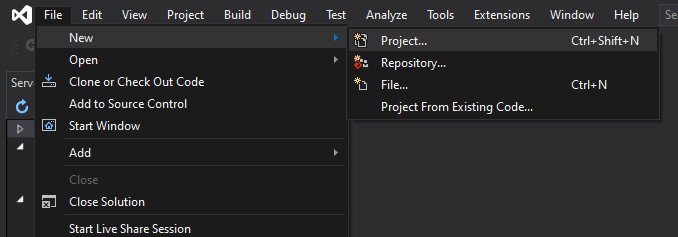
New>Project
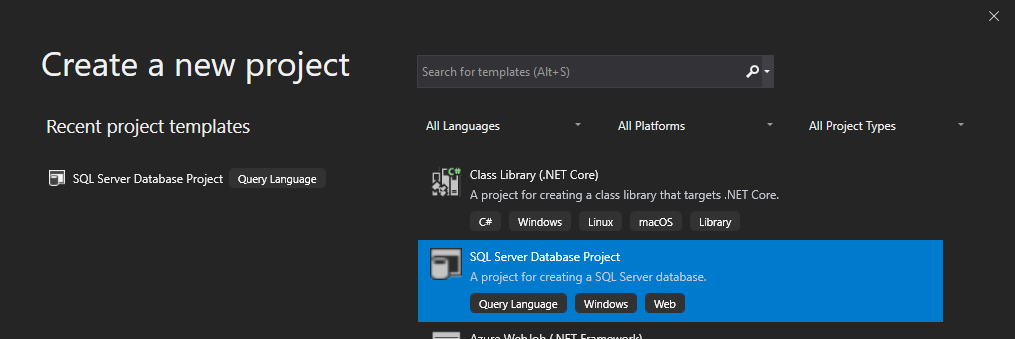
Select SQL Server Database Project
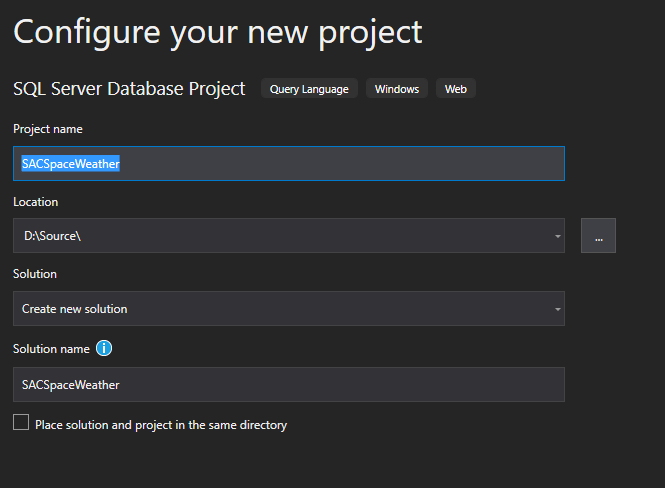
Give it a name and create your project
Your solution will look like this

I’ve already created some of my project tables in SSMS (SQL Server Management Studio) and I would like to add them to my project so I can save the source code.

First thing you need to do is add files to your project. I won’t do this manually but I will use SQL Schema compare. It’s a lovely funtionality within the SQL Server DB project that will allow you to compare different databases or projects to identify changes and script the same.
Tools>SQL server>New Schema Comparison

Then you select the source and the destination. In my case I will choose as source my DEV database and the destination will be my project, as I want to add all changes not already registered in my DB project.

Go to source tab and select your source database in Select Connection

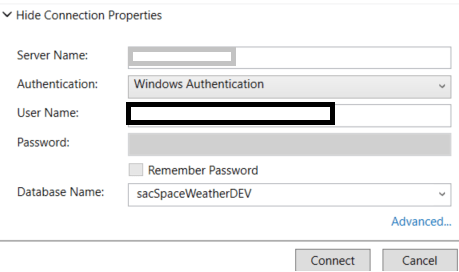
In the target field we enter our recently created project

It should show like this

Then click in Compare button to start the comparison. Then you should find your new or updated objects as below.

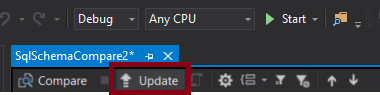
You should be able to add the newly created objects to your project or, if any is updated, you can update them as well. Also you can exclude objects from the data comparison. Click in “Update” button so the project gets updated with these changes.
Once the update has finished your project should look like this

Couple of considerations to make:
- The project will save the DB schema structure. As you can see, Visual Studio will create a folder for each schema, and the objects tree inside each schema.
- The file name is <object_name>.sql. And please keep it like this, don’t mess up with the file names as it might generate issues in future updates.
In the next entry we will examinate other SQL Server project features, like Data Compare, to move data across instances or generating data scripts. Also we will explain how to upload your code into Azure DevOps with Team Foundation Version Control
 The Enterprise Tech Corner