

Yes!, finally coding! (kind of).
In this post I will show you how I could get data from NASA public APIs using Talend Open Studio for Big Data and MySQL DB.
This is the first step in my big Space Weather project: the data ingestion. The purpose of the program is getting a determined amount of published Space Weather data from NASA so we can perform data cleansing and analysis later on.
I will be getting data from following NASA APIs:
Coronal Mass Ejection (CME)
Coronal Mass Ejection (CME) Analysis
Geomagnetic Storm (GST)
Interplanetary Shock (IPS)
Solar Flare (FLR)
Solar Energetic Particle (SEP)
Magnetopause Crossing (MPC)
Radiation Belt Enhancement (RBE)
Hight Speed Stream (HSS)
WSA+EnlilSimulation
You can have a look these APIs in the DONKI NASA Site.
The data pull follows the flow below.

The flow is really simple. We have a table in MySQL where we store the API Call history so we can determine the last successfully pulled date. Then we call the different APIs with Start Date and End Date as parameter and we receive the API response in json format. We get that response and place it in a json file and store it in our file system with a specific unique file name.
Talend Flow
The Talend flow looks a bit more complicated but it does exactly what I’ve explained previously.
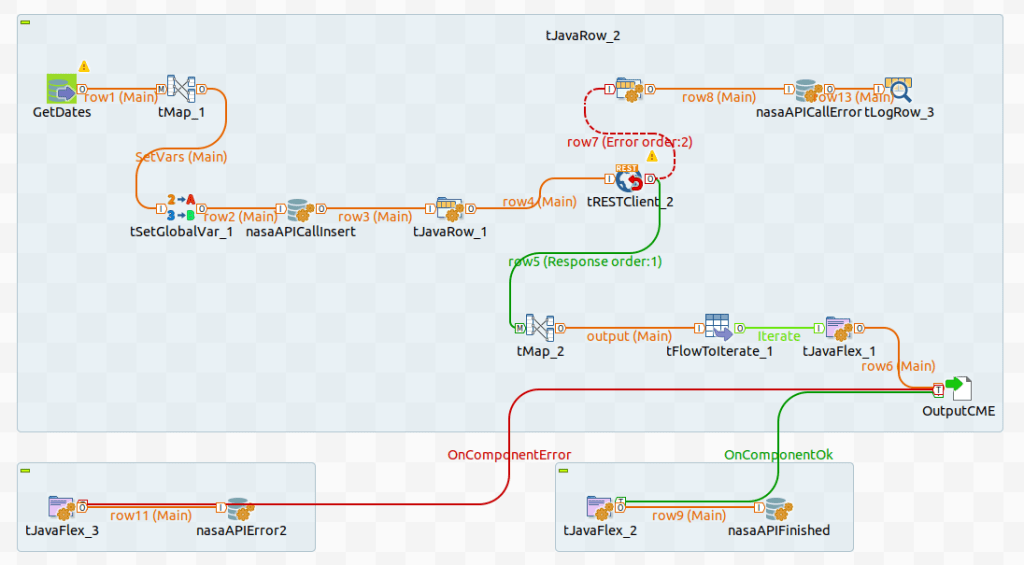
The job above shows the flow of the CME API call. We have different jobs for the different APIs with the same structure.
I will only explain the main components as some of them are just there to support the flow like a TJavaRow will just repopulate the schema to the API or tFLowToIterate is used as a workaround to recreate the dynamic file name (a known Talend limitation).
Supporting Database Objects
There are two main database objects in this data ingestion project:
- The control table nasaAPIcalls. This table will help us to record and manage the flow of the API call. It looks like this:

The table definition is shown below or you can check it the github repo.
CREATE TABLE NASANW.nasaAPIcalls (
CallID INT NOT NULL AUTO_INCREMENT,
apiName VARCHAR(50) NOT NULL,
StartDate DATE NOT NULL,
EndDate DATE,
Status VARCHAR(15) NOT NULL DEFAULT 'Started' CHECK (Status in ('Started','Error','Finished')),
FileStatus VARCHAR(15) NOT NULL DEFAULT 'NA' CHECK (FileStatus in ('NA', 'HDFS', 'HDFSError', 'CFormat', 'CFormatError', 'HiveT', 'HiveTError')) ,
CreationDate TIMESTAMP NOT NULL DEFAULT CURRENT_TIMESTAMP,
ModifiedDate TIMESTAMP NOT NULL DEFAULT CURRENT_TIMESTAMP,
Message VARCHAR(1500),
PRIMARY KEY (callID) );
The stored procedure nasaAPIcallsHandler which will help us to insert/update into the table nasaAPIcalls from/to Talend. You can review the code in github here.
Step1 – Get Dates – Component tDBInput.
I named it GetDates as shown below and I query the last pulled date by API name.
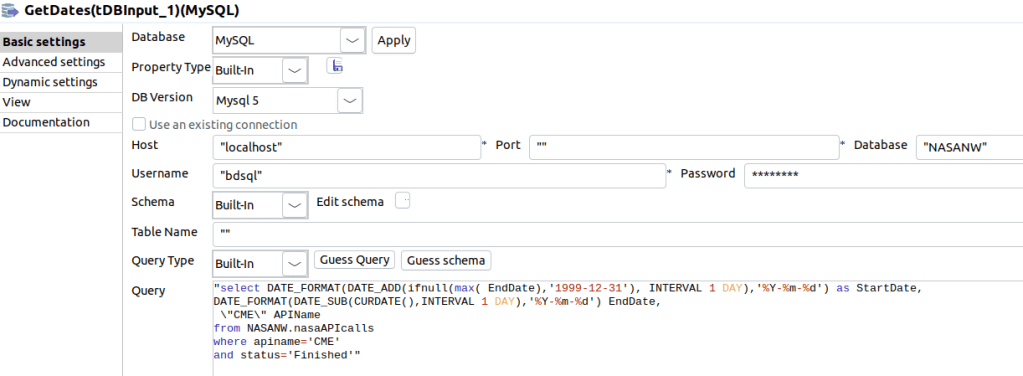
As you can see above, we connect to our MySQL database and query the latest API Call EndDate for CME API. Then we add one day to calculate the Start Date. The End Date is today minus one day. The example below is for the CME API call. For the rest of API Calls I substituted the APIname where clause with the specific API name for that job.
select DATE_FORMAT(DATE_ADD(ifnull(max( EndDate),'1999-12-31'), INTERVAL 1 DAY),'%Y-%m-%d') as StartDate,
DATE_FORMAT(DATE_SUB(CURDATE(),INTERVAL 1 DAY),'%Y-%m-%d') EndDate,
\"CME\" APIName
from NASANW.nasaAPIcalls
where apiname='CME'
and status='Finished'
Step2 – CME API Call – Component tRestClient
Once we have the API Name, Start Date and End Date we are ready to call the API. In this case we will show the CME call per NASA DONKI Site but it can be done in the same way for the rest of the APIs.
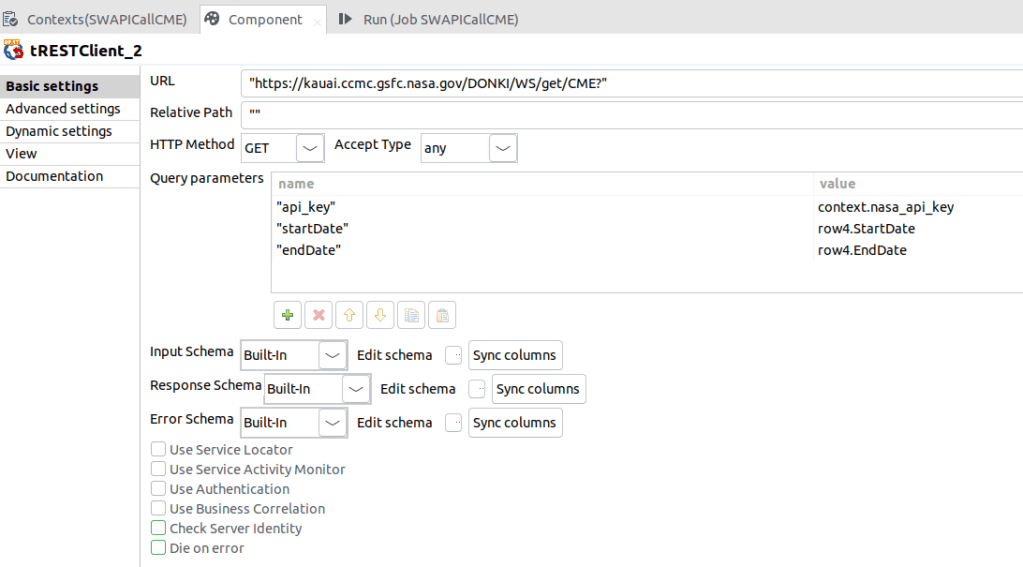
As you can see above, you can specify the API parameters in the Query Parameters section. The first one is the API key I got from NASA and I’ve added it to the context so we just enter it once. Also, if it changes it’s easy to propagate the updated key. The Start Date and End Date come from the GetDates component.
It’s important to clarify that the Accept Type parameter is not Json because it caused so many problems when I tried to get the response in Json format. The system does not infer the schema automatically and I needed to specify and map field by field including the whole schema tree. I know this can be done with other tools easily, so I decided to get the response as it comes from the API and save it in a file for later conversion.
It’s important to show the response schema elements when the file the parameter “Accept Type” is set to “Any”.

I will show you in the last step how to map the string component to the file output.
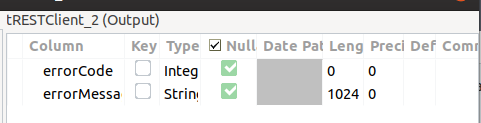
The Error Schema shows the following elements. We will use them as well later on to report any API call error.
Step 3 – Generate Output File – Component tFileOutputRaw
This is the last logical step, where we get the API response in String format, and generate the file with Json extension. The file name is created by concatenation of the API short name and the CallID from the nasaAPIcall table. This ID is created before calling the API and it’s the primary key on nasaAPIcalls table.
We need a tMap component between the Rest call and the file output generation for two reasons: first to map the string output from the API response with the file content and second to generate the file name dynamically with the API name and the CallID. The mapping is shown below.

The tFileOutputRaw component definition is very very simple.

The file name is retrieved from the output flow where we concatenate the APIName, CallID and the Outputpath variable that we set in the Job Context.
The job execution for the CME API would look like this.

And the file generated for the CallID 99 would show in the file system as follows.

The json content in the file.

The Stored Procedure to Access the DB: Component tDBSP
This component is very important. I use it to access nasaAPIcalls table to record the API Call flow and the API Call Status. I record the following events:
Before I call the API I record the time range for when we are going to pull data, the API name and we set the status as Started. The Stored Procedure call would look like this.

After the tRestClient is executed we set the status as Error if there is any error in the API get action.
Once we generate the file we set the status to Finished if the file is correctly generated or Error if there is any kind of error.
Conclusion
I’m pretty sure we can develop this program much easier with direct coding with Java, but Talend gives you the opportunity of making the same without knowing much Java.
It was very annoying tough spending so much time in a simple flow, probably because I had to find out many workarounds for some of the Talend limitations, like: lack of continuity of the variable values through the flow, limited schema inference or the dynamic variables being calculated at the beginning of the flow (when some values are not populated).
I’ve never had these issues when using SSIS but I have to say I like the fact I can better control the variable assignment through coding and the inclusion of Java scripts here and there, something that I didn’t need in SSIS and, once you get used to it, it’s quite nice.
 The Enterprise Tech Corner